How to Set Up Claude Code with Telegram (Step-by-Step Guide 2026)
 Dmytro Chaban
I run Claude Code on a VPS and control it from my phone. No terminal window open, no SSH session, just Telegram. Here's how to get the same setup in under 5 minutes.
TL;DR#
- Claude Code Channels bridge your coding agent to Telegram, so you send messages from your phone and Claude works on your machine
- Requires Claude Code v2.1.80+, Bun runtime, and a claude.ai Pro/Max/Team/Enterprise account
- For VPS setups, combine with
--dangerously-skip-permissionsfor fully unattended operation - Main gotcha: keep only one terminal running or messages get swallowed
Quick setup (assuming you already have a bot token from @BotFather):
Then DM your bot on Telegram, grab the pairing code, and run /telegram:access pair <code> in Claude Code.
What Are Claude Code Channels?#
A channel is an MCP server that pushes events into a running Claude Code session. You send a message from Telegram, it reaches Claude in your terminal, Claude does the work, and the reply shows up in the same Telegram chat.
Your session stays on your machine (or VPS). Nothing runs in the cloud. Claude has full access to your filesystem, git, and all your MCP servers and tools. Telegram is just the remote control.
Channels are in research preview as of March 2026. Telegram, Discord, and iMessage are supported.
What You Need Before You Start#
Check these first:
- Claude Code v2.1.80 or later (run
claude --versionto check) - A claude.ai account on Pro, Max, Team, or Enterprise. API keys don't work with channels
- Bun runtime installed. Not Node.js, not Deno. The Telegram plugin specifically requires Bun. This trips people up
- A Telegram account (obviously)
If you don't have Bun:
Set Up Telegram in 5 Minutes#
Step 1: Create a Bot with BotFather#
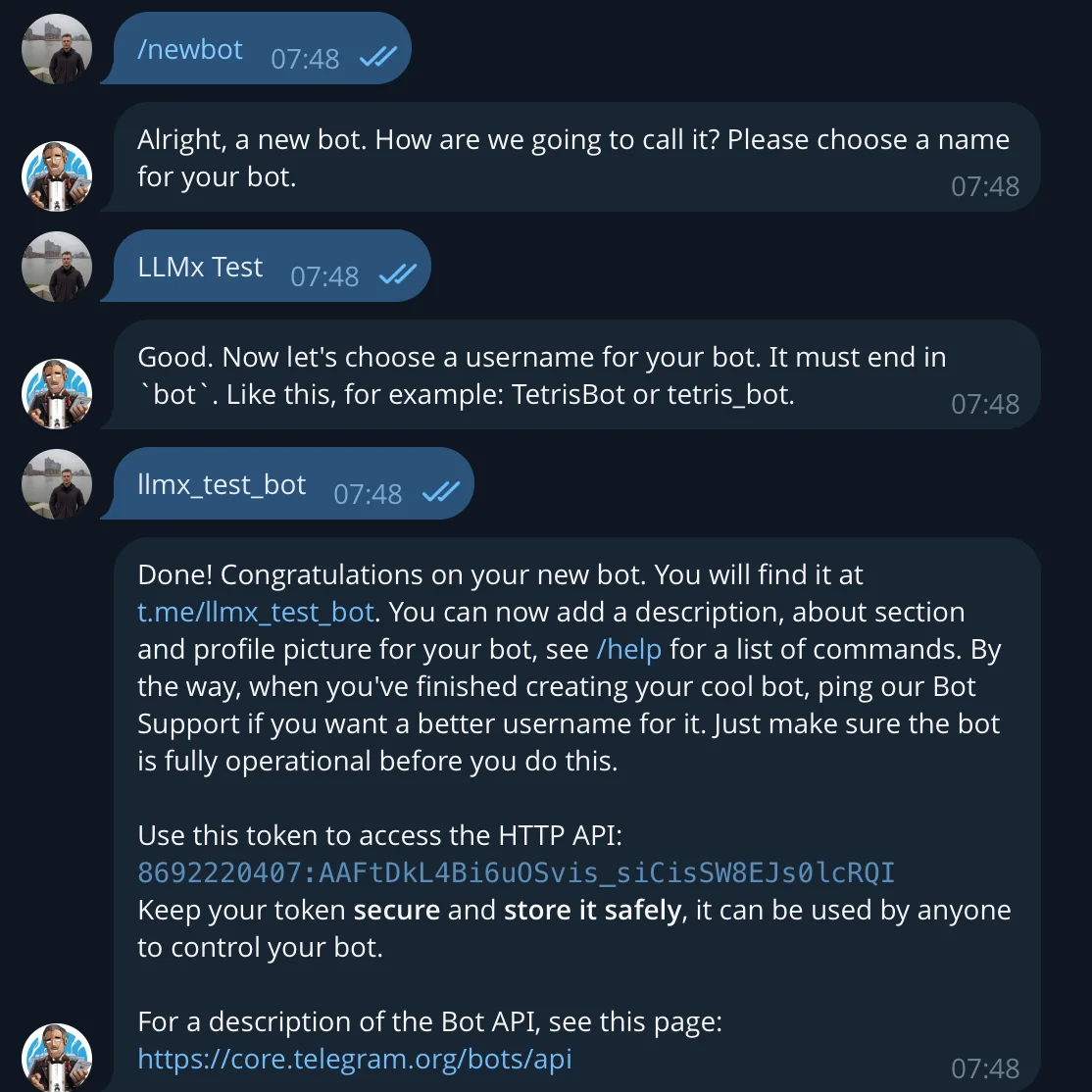
Open Telegram and search for @BotFather. Send /newbot.
BotFather asks for two things:
- Display name for your bot (anything works, can have spaces)
- Username that must be unique and end in
bot(e.g.,my_claude_assistant_bot)
BotFather gives you a token. Copy it. You'll need it in the next step.
Step 2: Install the Telegram Plugin#
Open a Claude Code session and run:
The installer prompts you for the bot token from Step 1. Paste it in. It writes the token to ~/.claude/channels/telegram/.env.
Step 3: Launch with the Channels Flag#
Exit your current session and restart with the channels flag:
Claude Code starts with the Telegram plugin active and begins polling for messages from your bot.
Step 4: Pair Your Device#
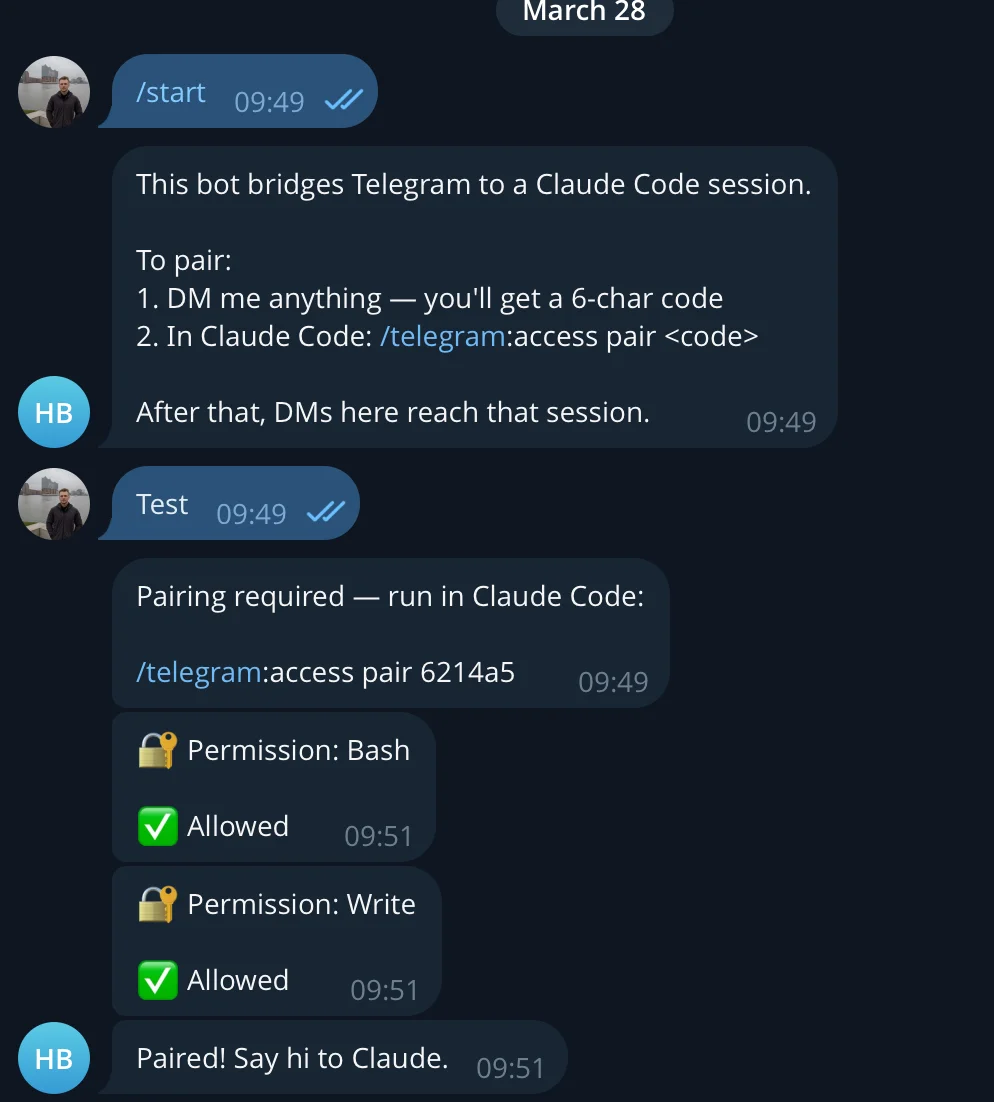
Open Telegram and DM your bot. Send anything.
The bot replies with a 6-character pairing code. Go back to your Claude Code terminal and run:
This is the actual pairing flow from my setup:
The whole thing takes about 2 minutes.
Step 5: Lock Down Access#
Right now the bot is in pairing mode, which means anyone who DMs it gets a pairing code. Switch to allowlist mode:
Now only your paired Telegram account can send messages to Claude. Strangers get nothing.
Tips for Daily Use#
Setup is done. Most guides stop here. They shouldn't.
Create a Shell Alias#
You don't want to type that full --channels flag every time. Add this to your .bashrc or .zshrc:
Now you just type claudet and you're connected.
Handle Permissions Remotely#
When Claude needs to run a bash command or write a file, Telegram relays the permission prompt directly to your chat:
🔐 Permission: Bash
✅ Allowed

🔐 Permission: Write
✅ Allowed
You approve or deny straight from your phone.
For VPS or disposable machines: if you're running Claude on a server you don't care about protecting, skip the permission dance entirely:
Claude runs any command without asking. Throwaway VPS? Go for it. Your main dev machine? Probably not.
Run on a VPS for True Remote Access#
My preferred setup: Claude Code on a cloud VPS, Telegram on my phone. Actual remote coding from anywhere. If you need a VPS, I covered setting up an Ubuntu desktop on GCP before.
The workflow is dead simple:
- SSH into your VPS
- Start a
tmuxorscreensession (so it survives SSH disconnects) - Run
claudet --dangerously-skip-permissions - Walk away
From your phone, you can ask Claude to review PRs, fix bugs, run tests, deploy. Full filesystem access, full codebase. I've been using this as my primary workflow and it's been more reliable than Dispatch for me.
Best Workflows from Your Phone#
Things that work well from Telegram:
- Code reviews: "Review the last PR and list the issues"
- Test runs: "Run the test suite and tell me what broke"
- Quick fixes: "Fix the TypeScript error in src/api/handler.ts"
- Deploy monitoring: "Check if the deployment succeeded and show me the logs"
- Context gathering: "Summarize what changed in the last 3 commits"
Give Claude clear, specific tasks. Text it like you'd text a colleague, not like you're writing a spec. If you want to go deeper on getting more out of AI agents, I wrote about that separately.
Get more Claude Code workflows
I share practical Claude Code setups, MCP integrations, and automation tips as I test them.
Troubleshooting#
Bot Not Responding at All#
Check the basics:
- Is Claude Code running with
--channels? The bot is dead without an active session - Did you complete pairing? Run
/telegram:access listto check
If both are fine, make sure Bun is actually installed and on your PATH.
Messages Getting Dropped (The "Write Twice" Problem)#
The main gotcha I've hit. You send a message, silence. Send it again, Claude responds.
Root cause: multiple terminals running Claude Code. Even if the second terminal is NOT connected to Telegram, it can steal the session. The Telegram plugin doesn't handle this gracefully.
Fix: Make sure only one terminal is running Claude Code.
If it persists, kill all Claude processes completely and start fresh. The restart process is simple and takes seconds.
Bun Not Found#
The plugin requires Bun. Node.js and Deno give you cryptic errors. Install it:
Telegram Channels vs Dispatch#
Anthropic also offers Dispatch (formerly Remote Control), a browser-based way to interact with Claude Code remotely.
| Feature | Telegram Channels | Dispatch |
|---|---|---|
| Interface | Telegram app (any device) | Browser (claude.ai) |
| Setup complexity | 5 minutes (BotFather + plugin) | 1 command |
| Mobile notifications | Native push notifications | Browser notifications |
| Rich UI | Plain text + code blocks | Full claude.ai interface with file previews |
| Reliability (my experience) | Very reliable on VPS | Improved, but occasional drops |
| Permission handling | Relay prompts to chat | Full UI controls |
| Unattended mode | Works great with --dangerously-skip-permissions | Requires browser open |
| Best for | VPS/headless setups, mobile-first | Full claude.ai experience |
My pick: Telegram for reliability when running long tasks on a VPS. Dispatch when I want the full claude.ai interface with rich formatting and file previews.
Both have gotten better. A month ago Dispatch was flaky. It's improved. But for a fire-and-forget VPS setup, Telegram is still what I use.
Frequently Asked Questions
Enjoyed this post?
Find out which LLM is cheapest for your use case — I test new models as they launch
No spam, unsubscribe anytime.