Gemini CLI Setup: GEMINI.md, MCPs, Skills (Definitive Guide 2026)
 Dmytro Chaban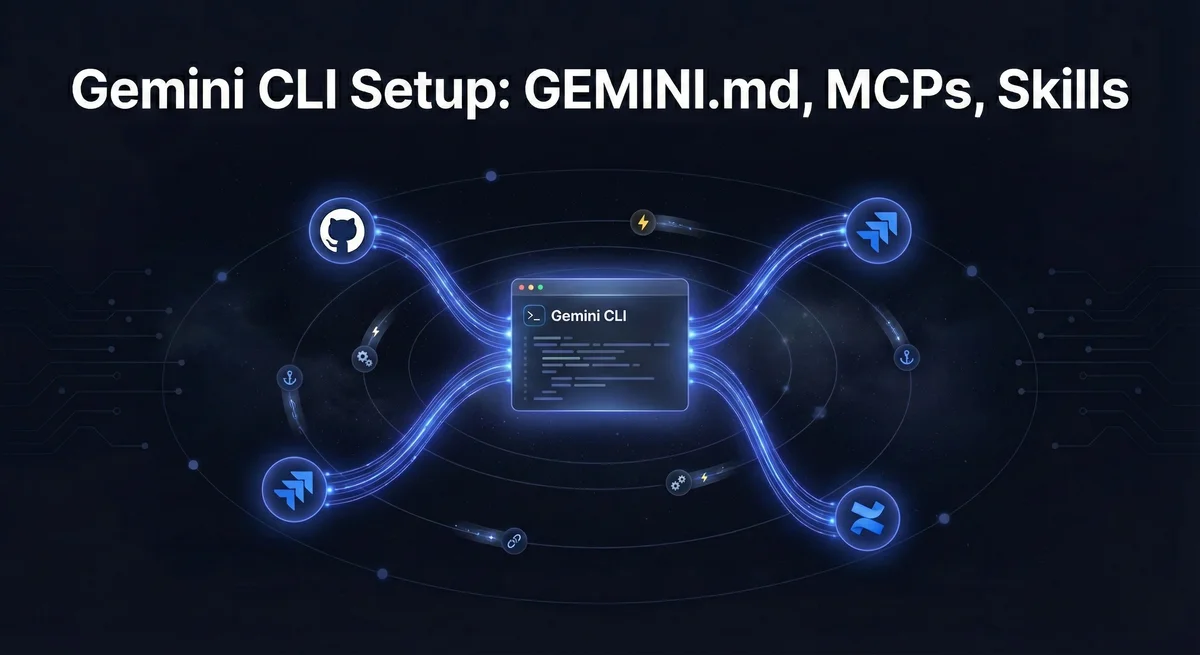
Setting up Gemini CLI shouldn't require piecing together scattered documentation. Here's the complete, reproducible way to get it working: a minimal GEMINI.md, reusable skills, MCP tool connections, and quality-of-life hooks that prevent it from editing files you didn't ask for.
This is the clean setup I wish everyone started with: a minimal GEMINI.md, reusable skills, external tools via MCP, and a couple of quality-of-life hooks.
The official quickstart stops at installation. This guide covers production setup: team collaboration patterns, troubleshooting matrices, and productivity optimizations most developers miss.
Key Takeaways#
- Keep GEMINI.md short and repo-specific. If it becomes a manifesto, it will be ignored.
- Put repeatable workflows into skills. One clear SKILL.md beats 300 lines of tips in GEMINI.md.
- Connect tools through MCP, not copy-pasted scripts. Start with GitHub. Add Jira/Confluence when you need them.
- Use settings.json for personal preferences. Hooks, themes, and plugin toggles should not pollute the repo.
- Never commit tokens. Put secrets in env vars or a secrets manager. Rotate, don't recycle.
What Is Gemini CLI (and what it is not)?#
Gemini CLI is Google's open-source AI coding agent that runs in your terminal. It reads your codebase, runs shell commands, edits files, and follows project instructions—similar to Claude Code, but with key differences.
What it is: A fast, free alternative to Claude Code with a massive 1M token context window and built-in Google Search grounding. The free tier gives you 60 requests/minute and 1,000/day via Google OAuth. On active projects, you'll hit these limits fast.
What it is not: A magic autocomplete that "just works." Without proper configuration and an AI-ready codebase, you get inconsistent results and a repo full of half-finished changes.
The mental model that makes Gemini CLI predictable is identical to Claude Code or other AI coding agents:
- Instructions (what to do, how to behave, what to avoid) → GEMINI.md
- Tools (what it can access) → MCP servers
- Guardrails (what it must not touch) → Skills and settings
Quick comparison: Gemini CLI offers 60 requests/minute and 1,000 requests/day free—Claude Code costs $200/month but provides higher-quality code generation and better tooling. If you're budget-conscious or working on large projects where context window matters, Gemini CLI is worth the setup investment.
Step 1: Install Gemini CLI (macOS, Windows, Linux) and Verify It Works#
Prerequisites#
Before installing, you need Node.js version 18 or higher:
If you don't have Node.js installed, download it from nodejs.org or use a version manager like nvm.
Option A: Run instantly with npx (no installation)#
The fastest way to try Gemini CLI without committing to an install:
This downloads and runs the latest version temporarily. Perfect for testing on shared machines or CI/CD pipelines.
Option B: Install globally with npm#
For daily use, install globally:
Option C: Homebrew (macOS/Linux)#
If you prefer package managers:
Option D: MacPorts (macOS)#
For MacPorts users:
Option E: Anaconda (restricted environments)#
In restricted corporate environments, use Conda:
First run + verification#
Navigate to a project and start Gemini CLI:
You'll see a prompt asking how to authenticate. Choose "Login with Google" for the free tier, or select API Key/Vertex AI if you have specific requirements.
Verify everything works:
Install troubleshooting checklist#
- "command not found": Check your PATH includes npm global binaries (
npm bin -g) - Node version errors: Upgrade to Node 18+ (check with
node --version) - Permission denied on macOS: Use
sudofor global installs, or fix npm permissions - Windows PowerShell errors: Run as Administrator or use Windows Terminal
The Instruction Stack: Where Gemini CLI "Gets Its Brain"#
If your Gemini CLI setup feels inconsistent, you're probably mixing instruction sources without realizing it. Here's the clean split:
- Project instructions: What to do in this repo → GEMINI.md
- Reusable workflows: What to do in specific task types → Skills
- Personal preferences: What you like as a developer → ~/.gemini/settings.json
- External tools: What Gemini can call into → MCP servers in settings.json
The goal is not to make Gemini "smarter." The goal is to make it less ambiguous.
Step 2: Generate GEMINI.md with /init (then keep it minimal)#
GEMINI.md is where you tell Gemini CLI how to work in this repository.
You don't write it from scratch. Inside Gemini CLI, run:
/init
Gemini will generate a starter GEMINI.md for your repo. Your job is to review it, delete the fluff, and keep only what actually improves outcomes.
GEMINI.md hierarchy (global, project, subdirectory)#
The CLI uses a hierarchical system:
- Global context:
~/.gemini/GEMINI.md(applies to all projects) - Project root:
./GEMINI.md(or./.gemini/GEMINI.md) - Ancestor directories: Searches up to project root (identified by
.gitfolder) - Subdirectories:
./.gemini/GEMINI.mdfiles in subdirectories for component-specific instructions
Use /memory inside Gemini CLI to review what memory files are being applied.
What belongs in GEMINI.md (10 bullets max)#
- What this repo is and who it's for
- The commands that actually matter (dev, build, test, lint)
- "Start here" pointers (3-6 files Gemini should read first)
- The architecture map (major directories and boundaries)
- Hard constraints (e.g., "static export only, no server actions")
- Non-obvious conventions (naming, imports, generated code)
- "Do not touch" boundaries (secrets, production configs)
- How you want changes verified (tests, typecheck, lint)
- Which model to prefer for this project (if any)
- Where to find additional context (links to docs, wiki)
What does not belong in GEMINI.md#
- Long runbooks and onboarding docs
- Full style guides (link to them instead)
- Secrets or tokens
- Vague instructions like "be helpful" or "write quality code"
Everything else should move into skills or project documentation. If you want a framework for deciding what context goes where, see A Developer's Guide to the 5 Essential Context Types for AI.
Level up your AI coding workflow
Get setup guides and productivity tips for AI coding tools like Gemini CLI and Claude Code.
Step 3: Connect External Tools with MCP (GitHub, Jira, Confluence)#
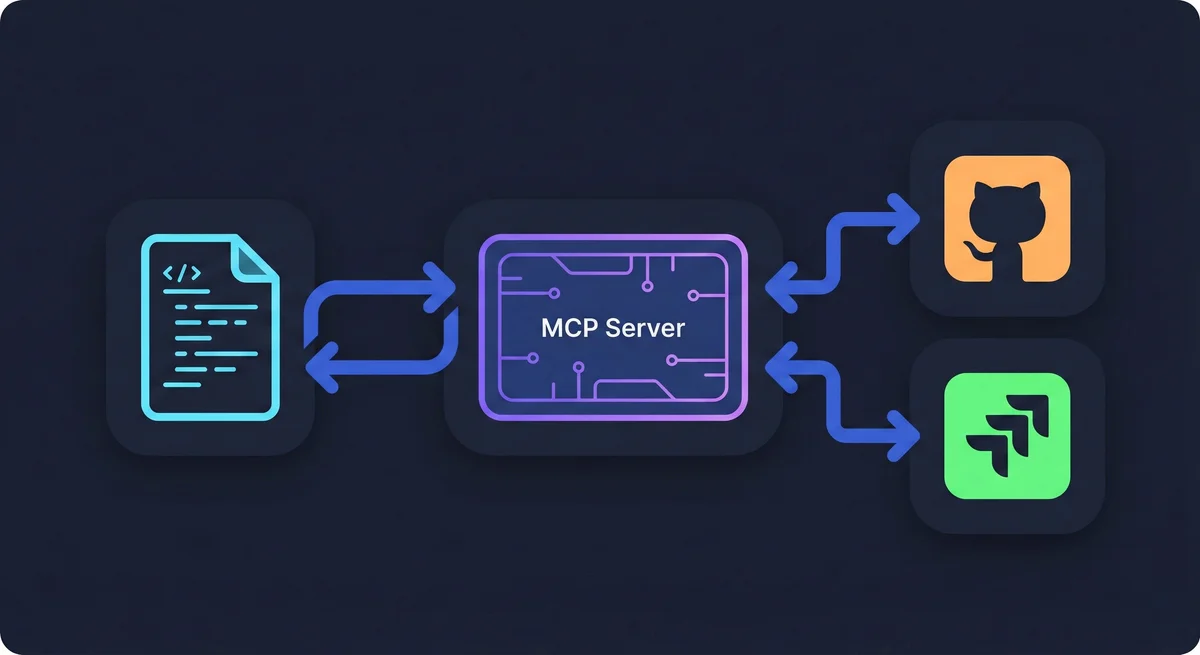
MCP (Model Context Protocol) is how Gemini CLI talks to external services. Think of it as "plugins, but explicit and inspectable." If you want to dive deeper into MCP architecture, check out our guide on unlocking Gemini CLI's full potential with MCP.
Where MCP config lives (real paths)#
Gemini CLI uses settings.json for all configuration. There are four locations:
| Scope | Linux | macOS | Windows |
|---|---|---|---|
| User (global) | ~/.gemini/settings.json | ~/.gemini/settings.json | %USERPROFILE%/.gemini/settings.json |
| Project | .gemini/settings.json | .gemini/settings.json | .gemini/settings.json |
| System defaults | /etc/gemini-cli/system-defaults.json | /Library/Application Support/GeminiCli/system-defaults.json | C:/ProgramData/gemini-cli/system-defaults.json |
| System override | /etc/gemini-cli/settings.json | /Library/Application Support/GeminiCli/settings.json | C:/ProgramData/gemini-cli/settings.json |
Configuration precedence (highest to lowest):
- Command-line arguments
- Environment variables
- System settings
- Project settings
- User settings
- System defaults
Quick-start: add a GitHub MCP server#
The easiest way is using the CLI:
Or manually edit ~/.gemini/settings.json:
{
  "mcpServers": {
    "github": {
      "command": "npx",
      "args": ["-y", "@modelcontextprotocol/server-github"],
      "env": {
        "GITHUB_PERSONAL_ACCESS_TOKEN": "$GITHUB_TOKEN"
      }
    }
  }
}
Set the token via environment variable (never commit it):
Example: Atlassian MCP (Jira + Confluence)#
{
  "mcpServers": {
    "atlassian": {
      "command": "uvx",
      "args": ["mcp-atlassian"],
      "env": {
        "JIRA_URL": "https://your-company.atlassian.net",
        "JIRA_USERNAME": "[email protected]",
        "JIRA_API_TOKEN": "$JIRA_API_TOKEN",
        "CONFLUENCE_URL": "https://your-company.atlassian.net/wiki",
        "CONFLUENCE_USERNAME": "[email protected]",
        "CONFLUENCE_API_TOKEN": "$CONFLUENCE_API_TOKEN"
      }
    }
  }
}
How to confirm what config is actually in effect#
When MCP feels broken, run this sequence:
Inside Gemini CLI, check status with:
/mcp
MCP troubleshooting matrix#
| Symptom | Likely Cause | Fix |
|---|---|---|
/mcp shows no servers | No servers configured in active scope | Add to ~/.gemini/settings.json or .gemini/settings.json |
Server DISCONNECTED | Wrong command path or missing dependency | Test command manually: npx @modelcontextprotocol/server-github |
Authentication failed | Missing or expired token | Check env vars with echo $GITHUB_TOKEN |
Tools not appearing | Server connected but no tools registered | Check server logs, verify tool definitions |
Connection timeout | Server taking too long to respond | Increase timeout in settings: "timeout": 30000 |
Step 4: Create Skills (Reusable Playbooks Gemini Can Follow)#
If a workflow is repeatable, multi-step, or expensive to get wrong, put it into a skill.
Where skills live#
Skills can be defined at two levels:
- Built-in skills: Enabled by default (
git,github,code_review, etc.) - Project skills:
.gemini/skills/directory - User skills:
~/.gemini/skills/directory
If you're on a team, put shared skills in the repo. Keep personal hacks in user scope.
Suggested skill structure#
.gemini/
  skills/
    triage-bug/
      config.json
      prompts/
        analyze.md
        fix.md
Example skill: code-review (minimal but real)#
Create .gemini/skills/code-review/config.json:
{
  "name": "code-review",
  "description": "Review code for bugs, style issues, and best practices",
  "triggers": ["/review"],
  "prompts": {
    "default": "Review the provided code diff. Focus on: 1) Bugs and logic errors, 2) Performance issues, 3) Security concerns, 4) Style consistency with project conventions. Be specific about line numbers and suggest fixes."
  }
}
Then use it in Gemini CLI:
/review @path/to/file
Step 5: Add Hooks and Notifications in ~/.gemini/settings.json#
Hooks are pure quality-of-life. The real benefit is knowing when the agent is done so you stop context-switching every 30 seconds.
macOS notification hooks#
Edit ~/.gemini/settings.json:
{
  "hooksConfig": {
    "enabled": true
  },
  "hooks": {
    "Stop": [
      {
        "type": "command",
        "command": "afplay /System/Library/Sounds/Blow.aiff"
      }
    ],
    "Notification": [
      {
        "type": "command",
        "command": "afplay /System/Library/Sounds/Submarine.aiff"
      }
    ]
  }
}
Linux alternatives#
{
  "hooks": {
    "Stop": [
      {
        "type": "command",
        "command": "paplay /usr/share/sounds/freedesktop/stereo/complete.oga"
      }
    ]
  }
}
Windows options#
{
  "hooks": {
    "Stop": [
      {
        "type": "command",
        "command": "powershell -NoProfile -Command \"[console]::Beep(800,200)\""
      }
    ]
  }
}
Common Mistakes (and how to fix them fast)#
Mistake 1: GEMINI.md becomes a dumping ground#
Fix: Reduce it to a router. Move procedures into skills and long-form docs into a docs/ folder.
Mistake 2: Tokens end up in git#
Fix: Use environment variables only. Reference them in settings.json with $VAR_NAME syntax. Add .env to .gitignore.
Mistake 3: MCP servers not connecting#
Fix: Check scopes and run gemini mcp list. Verify the command works outside Gemini CLI first.
Mistake 4: Ignoring the context window#
Fix: Use /compress regularly to summarize conversation history. Gemini CLI has a 1M token context window—use it, but don't waste it on old tool outputs.
Mistake 5: Not using approval modes#
Fix: Set approval-mode based on trust level:
--approval-mode default: Prompt for all tool calls (safest)--approval-mode auto_edit: Auto-approve file edits, prompt for shell commands--yolo: Auto-approve everything (use with caution)
Frequently Asked Questions
Enjoyed this post?
Find out which LLM is cheapest for your use case — I test new models as they launch
No spam, unsubscribe anytime.